




An XM demo account lets you practice forex and CFD trading with virtual money on the same platforms you would use live—MetaTrader 4, MetaTrader 5, or WebTrader—without depositing real funds. This guide focuses on demo features, setup choices inside the Members Area, MT login, strategy testing, and how demo differs from a real wallet.
I have used XM demo accounts to rehearse EAs and lot sizing before switching to real size. The setup is quick, but a few details—server names, trading passwords, and the 90-day inactivity rule—trip up beginners. Below is what actually matters after your XM profile is ready.
What Is an XM Demo Account?
An XM demo account is a free practice trading account funded with virtual balance. You get real-time (or live-feed) prices, standard order types, and access to the same instrument list as on a live XM account, depending on your account type and platform. It is the safest way to learn XM trading demo mechanics—spreads, swaps, margin, and platform shortcuts—before you risk your own capital.
- Cost: Free
- Default balance: $10,000 virtual (configurable from $1,000 to $5,000,000 when adding accounts)
- Platforms: MT4, MT5, WebTrader (browser)
- Account types on demo: Standard (spreads from 1.0 pip) and Ultra Low Standard (from 0.6 pip)
- Leverage: Up to 1:1000 on XM Global-style accounts; lower caps apply under ESMA and other regional rules—check your entity after registration
Compared with brokers that expire demos after 30 days, XM’s no fixed expiry (with an inactivity freeze) makes it a solid choice for long-term strategy testing. For live account types and KYC, see our XM account opening guide; this article stays focused on demo only.
6 Key Features of the XM Demo Account
Not every demo is equal. These six points are why I keep an XM demo alongside other brokers when testing new ideas.
No Time Limit (90-Day Inactivity Rule)
XM does not set a calendar expiry on demo accounts. You can keep trading as long as you log in and use the account. Personally, I find the 90-day inactivity freeze reasonable: if you do not trade or log in for 90 days, the demo is frozen and you cannot sign in until you open a fresh demo from the Members Area.
A common mistake beginners make is treating “no expiry” as “set and forget.” If you pause for three months, plan to recreate the demo rather than hunting for old MT credentials in email.
Up to 5 Demo Accounts per Email
One email address can hold up to five active demo accounts. That is useful if you want separate environments—for example, one account for scalping practice and another for EA testing with different leverage.
If you need more than five, you must use another email registration. In my experience, three demos cover most workflows; going beyond that without a spreadsheet of login IDs gets messy fast.
Leverage Changeable Anytime (1:1 to 1:1000)
Demo leverage can be adjusted from the Members Area, typically from 1:1 up to 1:1000 depending on your account region and XM entity. ESMA-regulated profiles will see lower maximums—that is normal, not a demo limitation bug.
When I tested the demo, switching leverage on demo helped me see margin impact before going live. Just remember: high leverage on virtual money still trains bad habits if you size orders as if losses do not matter.
Balance Can Be Topped Up Anytime
Running low on virtual equity? In the Members Area you can reset or increase demo balance within the allowed range ($1,000–$5,000,000). Default new demos often start at $10,000.
Honestly, this is not ideal for learning risk control if you refill after every blown demo session. I recommend topping up only when you are testing a specific scenario—such as drawdown recovery—not every time equity hits zero.
Two Account Types: Standard and Ultra Low Standard
Demo mirrors live account types available for practice:
- Standard — spreads from about 1.0 pip; no commission on this type
- Ultra Low Standard — spreads from about 0.6 pip; still commission-free on this tier
Compared with a generic “one-size” demo at some competitors, having both types lets you feel spread cost before you pick a live account. For a broader live-account comparison, see XM account types explained.
EA and Indicators Supported
XM’s demo supports Expert Advisors (EAs) and custom indicators on MT4/MT5, similar to live trading. When I tested an EA on demo, order routing and fills felt close enough to validate logic—but not slippage during news spikes.
If you are the type of trader who relies on automation, run the EA on demo for at least two weeks and log every error (disconnects, invalid stops, margin rejects). That failure log saves real money later.
Who Should Use an XM Demo Account?
If you are new to MetaTrader, testing an EA before live deployment, or comparing spread impact between Standard and Ultra Low Standard, an XM demo fits well. It is less ideal as a long-term substitute for journaling real trades—after three months of pause, the inactivity freeze forces a reset anyway.
- Beginners — learn order types, lot size, and margin without capital at risk
- EA developers — validate entries, stops, and disconnect handling on demo first
- Strategy testers — run parallel demos with different leverage or balances
- Traders switching brokers — confirm symbol names, contract sizes, and server login flow before funding live
XM Demo Account Setup from the Members Area
If you do not have an XM profile yet, start with the full XM account-opening guide below. It covers the current registration screen, email verification, member dashboard access, KYC flow, and account-type choices in more detail. This demo-account article focuses on what to choose after you are inside the Members Area.
Read first: How to open an XM account. After your XM profile is ready, use the steps below to add a demo account from the dashboard.
How to Add a Demo Account from the Members Area
Already have an XM profile? With the updated dashboard, a new demo is created from the account panel and the setup continues inside the right sidebar:
Log in to the Members Area on XM’s official site.
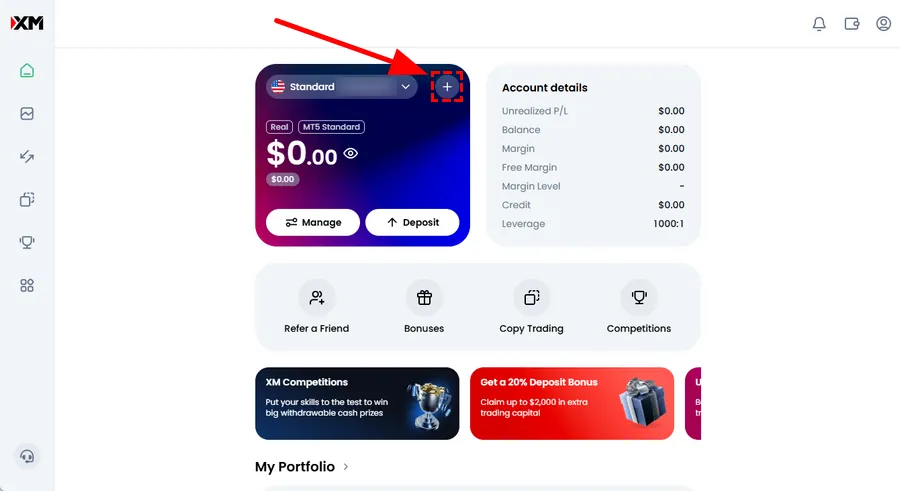
On the dashboard account panel, click the + button. A right sidebar opens.
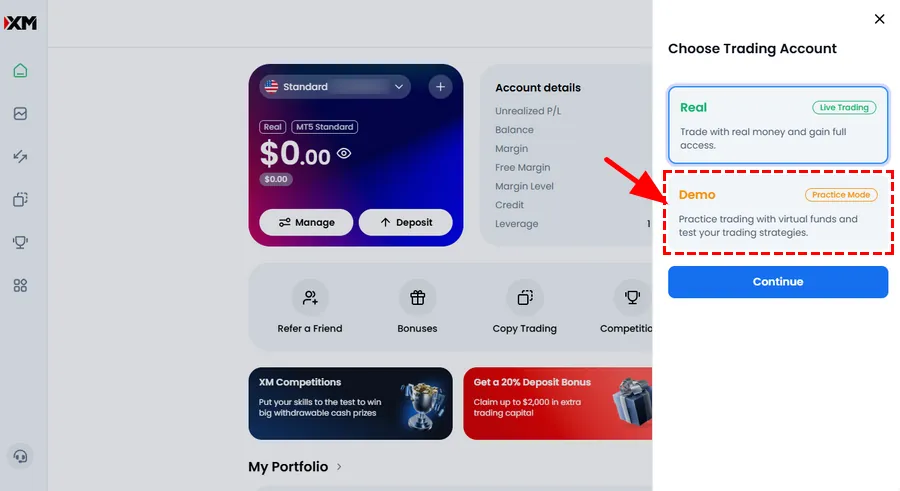
In the sidebar, choose Demo, then click Continue.
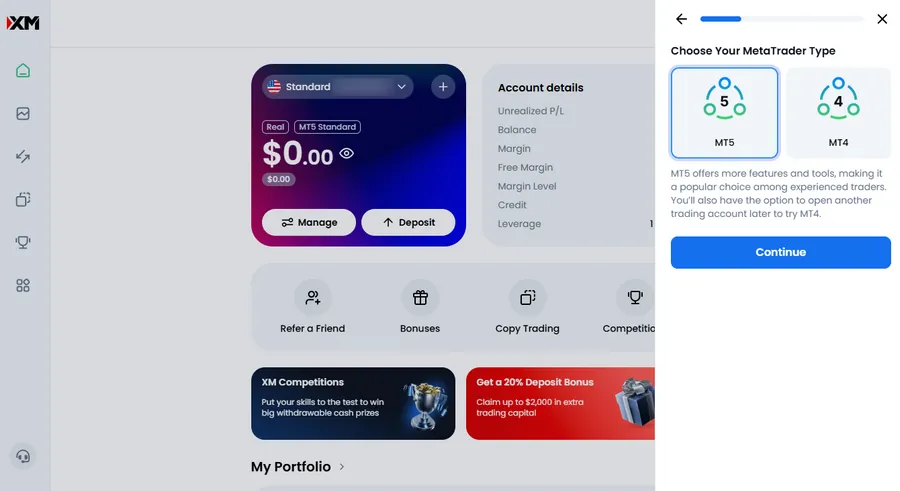
Select MT5 or MT4, then click Continue.
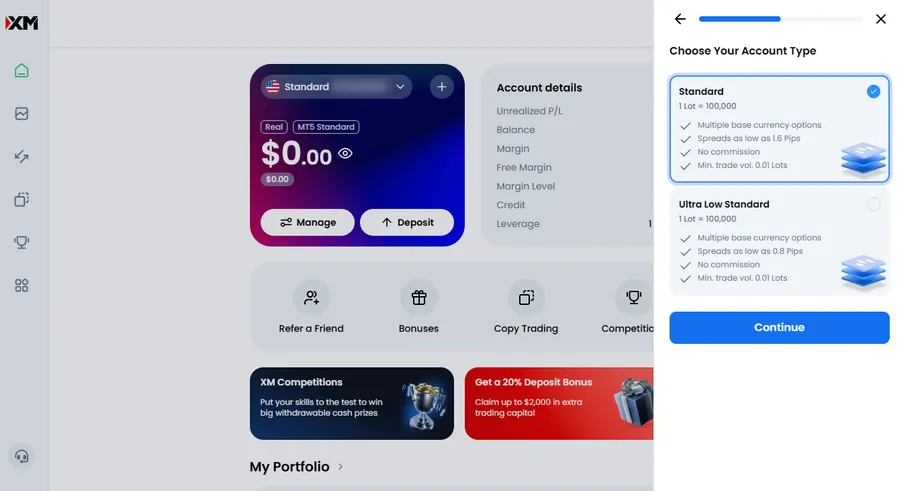
Choose the account type and continue.
For demo accounts, the available choices are Standard and Ultra Low Standard only.
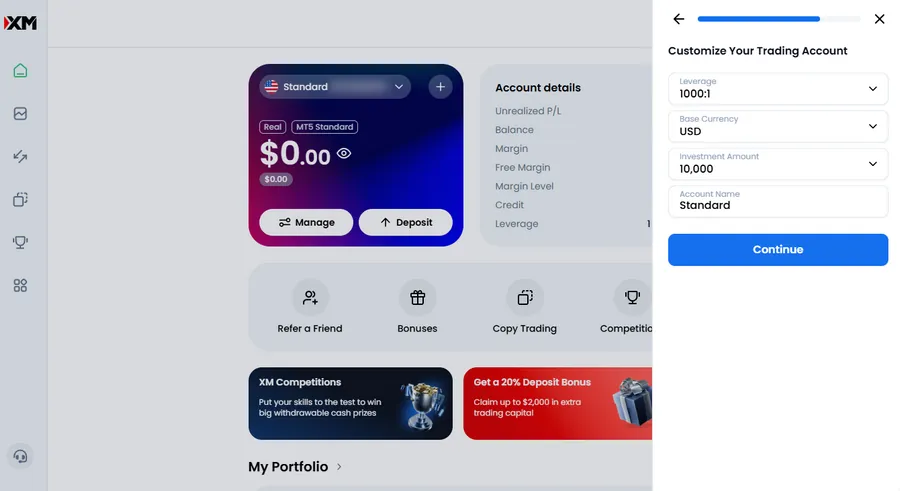
Customize the demo: set maximum leverage, account currency, starting virtual balance, and a nickname. Then click Continue.
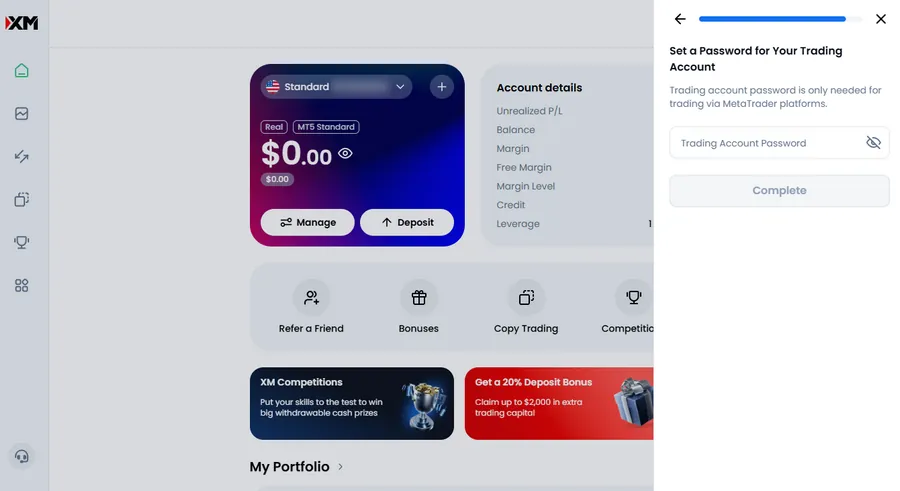
Set the trading account password.
It must be 10–15 characters and include at least one number, one lowercase letter, one uppercase letter, and one symbol.
Use only these supported symbols: #[]()@$&*!?|,.^/\+_-. After submission, the dashboard reloads.
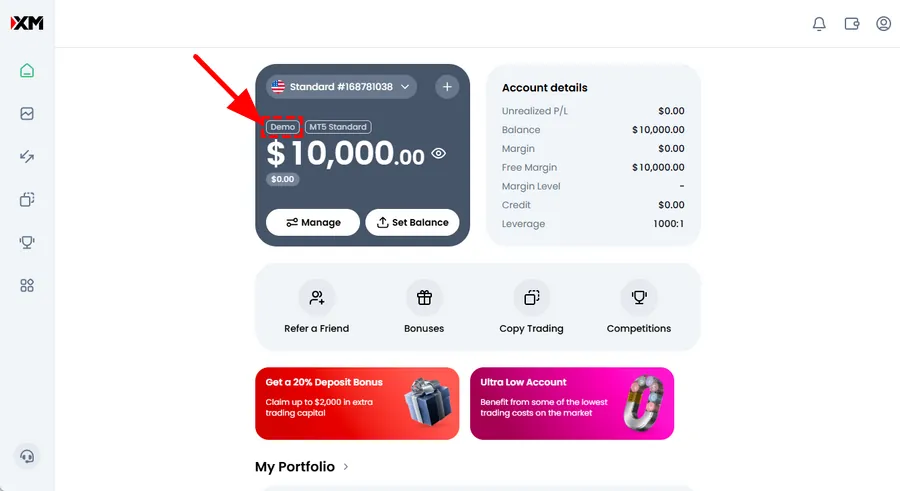
Confirm that the new demo account appears on the dashboard with its own MT ID, platform, account type, and demo badge.
Tip: Use the generator below to create a password that matches XM’s trading-account rules, then paste it into the password field and save it in your password manager.
XM demo trading password generator
Random password with uppercase, lowercase, number, and XM-supported symbol included
Generated password
Allowed symbols: #[]()@$&*!?|,.^/\+_-
I usually add a second demo when testing a new base currency. The nickname field now matters more because several demos can sit in the same dashboard list; label each one by purpose, platform, or leverage.
How to Log In to MT4/MT5 with Your Demo Account
MetaTrader login is separate from the Members Area website password in some flows—use the credentials shown for that specific demo account.
- Login — numeric MT ID from XM email or Members Area
- Password — the trading password you set at demo creation (or the one shown once in the portal)
- Server — must match the demo server for that account (e.g.
XMGlobal-Demo)
Desktop: File → Login to Trade Account, or use the initial login dialog after install.
Mobile: Add account → Login to existing account → enter ID, password, server.
WebTrader: Sign in through XM’s browser terminal with the same demo credentials where supported.
If login fails, re-copy the server from the latest XM email. A single wrong character in the server field produces “invalid account” errors that look like password problems.
Quick fixes when MT demo login fails
- “Invalid account” — server name mismatch; open the newest XM email and paste again
- “Invalid password” — you may be using the Members Area website password instead of the demo trading password set at registration
- Account frozen — 90+ days idle; add a new demo in the Members Area
- Old platform build — update MT4/MT5 from XM’s download page, then retry
Picture this: you paste the live server name into a demo login because a blog post listed it—MT rejects the login instantly. Always treat the server string in XM’s email as the single source of truth.
Demo Account vs Real Account: Key Differences
Demo trading is valuable, but it is not identical to live trading. Use the table below when planning your transition to a real account.
| Factor | XM demo | XM real |
|---|---|---|
| Funds | Virtual balance | Your deposited money |
| Psychology | Low emotional risk | Losses affect real finances |
| Execution | Can feel faster/smoother | Slippage and requotes possible in volatile markets |
| Swaps & costs | Modeled; good for practice | Charged per live account rules |
| KYC / withdrawal | Not required for demo | Identity verification required |
| Platforms | MT4, MT5, WebTrader | Same platforms; live server names differ |
| Inactivity | Frozen after 90 days idle | Subject to live account terms |
When you are ready for live trading, open a real account through XM’s official flow. For beginners who want to practice without risk first, demo remains a solid starting point—then move to small live size rather than jumping from $100k virtual to full lots.
The psychology gap demo cannot simulate
Genuine insight from years of watching traders switch: the first live week is rarely about strategy—it is about clicking “close loss” when the pip drawdown is real money. Demo teaches platform muscle memory; only small live size teaches emotional discipline. I suggest capping risk per trade on live at a fraction of what you tolerated on demo, even if your virtual account showed huge gains.
Execution during major news is the second gap. Demo fills can look generous; live accounts may see wider spreads or slippage depending on liquidity and your account type. Note the symbol specification in MT (right-click symbol → Specification) on demo, then re-check on live before sizing up.
FAQ — XM Demo Account
Conclusion: Practice on Demo, Then Scale Carefully on Live
An XM demo account is one of the more flexible practice environments available globally: multiple demos per email, adjustable leverage and balance, two spread profiles, and full MT4/MT5 EA support. The 90-day inactivity freeze is the main catch—set a calendar reminder if you step away.
For beginners who want to learn order flow and platform layout without risk, I lean toward starting on demo, then opening a small live account when your process is written down. Compared to most brokers, XM’s demo flexibility is genuinely above average—not perfect for simulating emotional stress, but excellent for mechanics.