



Exness MT5 login connects your live or demo trading account to MetaTrader 5 so you can chart, place orders, and manage positions from desktop or mobile. You need an MT5-specific account from the Exness Personal Area—MT4 credentials will not work on MT5.
This guide walks you through opening (or adding) an MT5 account, downloading the platform, finding your server name, and fixing the most common login errors. We also compare the Exness Web Terminal with the full MT5 app so you can pick the right tool.
Which Situation Applies to You?
- No Exness account yet — open an Exness account first, then return here to add MT5.
- Exness member, but no MT5 account — skip to open an MT5 account in the Personal Area.
- MT5 account already created — go to find login ID and server, then log in on your device.
Exness Web Terminal vs MT5: Which Should You Use?
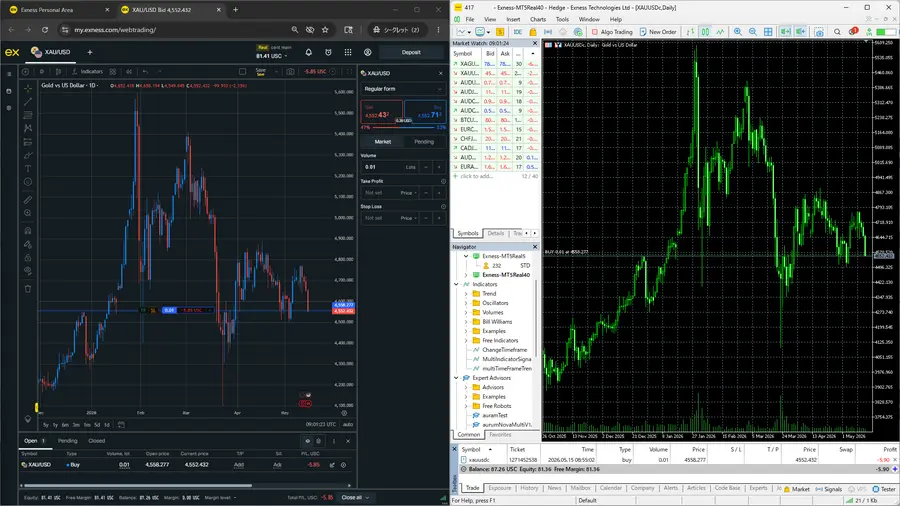
Use the Web Terminal when you want zero setup. Choose MT5 when you need deeper charting or plan to trade regularly. Both use the same underlying Exness account types—only the interface changes.
| Exness Web Terminal | MetaTrader 5 (MT5) | |
|---|---|---|
| Installation | None—runs in the browser | Download app (PC, Mac, or mobile) |
| Best for | Quick checks, simple orders | Daily trading, indicators, multi-chart layouts |
| Advanced tools | Limited vs desktop MT5 | Full indicator library, more timeframes, EAs (where allowed) |
| Login | Through Personal Area → Trade | Login ID + trading password + server name |
Open or Add an MT5 Account in the Personal Area
As of the current Personal Area layout, opening a trading account is a two-screen flow after you click Open account on the My accounts tab. Below matches the live UI (account type first, then setup details including platform).
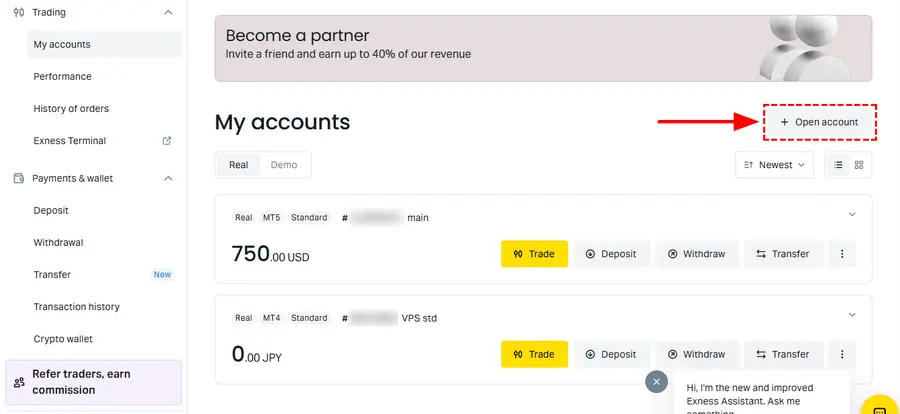
- Sign in to the Exness Personal Area (official site only—avoid third-party login pages).
- Open the My accounts tab and click Open account.
Step 1 — Open account: choose account type
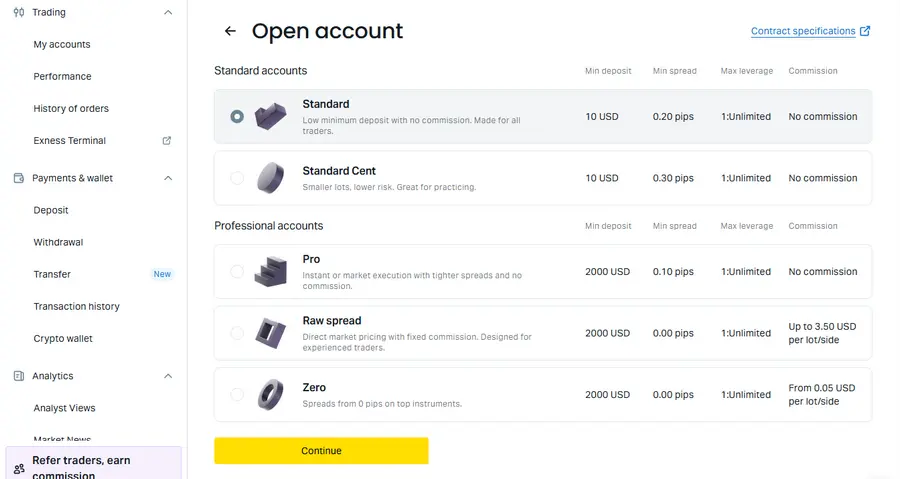
The first screen is titled Open account. You pick one account type from a comparison table, then press Continue.
- Standard accounts — Standard or Standard Cent (lower minimum deposit, no commission on these rows)
- Professional accounts — Pro, Raw spread, or Zero (tighter spreads and/or commission; higher minimum deposit shown on this screen)
Each row shows Min deposit, Min spread, Max leverage, and Commission so you can compare before selecting the radio button for one type. Not sure which to pick? See which Exness account to use on MT5. A Contract specifications link on this page opens full instrument terms in a new tab.
Step 2 — Set up your account: Demo/Real, MT5, and password
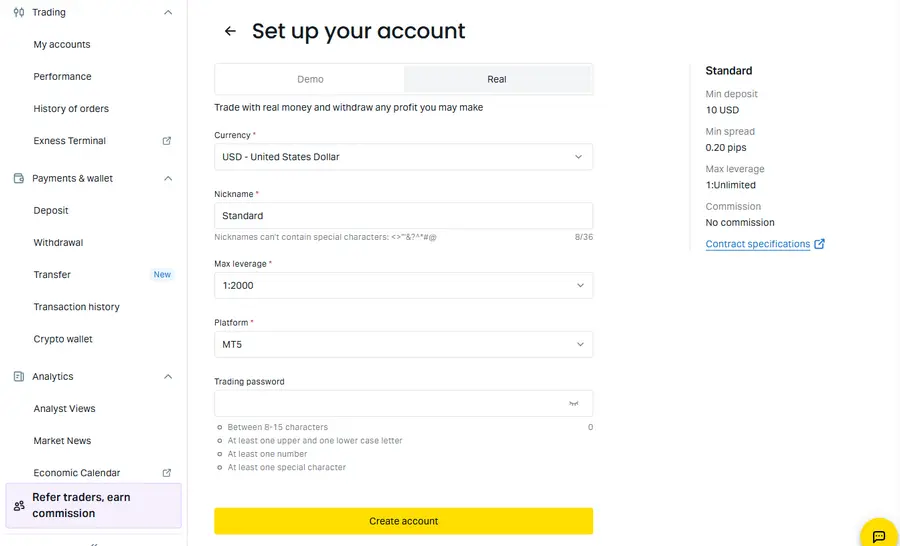
After Continue, the next screen is Set up your account. Fill in the form and click Create account:
- Demo / Real — toggle at the top. Choose Demo to practice; Real for live trading and withdrawals.
- Currency — account base currency (e.g. USD).
- Nickname — a label so you can find this account in the Personal Area (no special characters such as
<>"'&?^*#@). - Max leverage — choose from the dropdown (limits depend on account type and Exness rules).
- Platform — select MT5 here (not MT4). This is the step that links the account to MetaTrader 5.
- Trading password — set the password you will use in the MT5 app (8–15 characters; at least one uppercase letter, one lowercase letter, one number, and one special character from Exness’s allowed set:
#[]()@$&*!?|,./^+-_).
Tip: Use the generator below to create a compliant password, then paste it into the Trading password field on Exness and save it in your password manager.
Exness trading password generator
Random password (uppercase, lowercase, number, and allowed special character included)
Generated password
When creation finishes, the Personal Area shows your login ID and server name for that account—copy them before opening MT5. Demo and live accounts use different servers; always take the server string from the account you just created.
Where to Find MT5 Login ID and Server
What you enter in MetaTrader 5—login, server, and trading password—is separate from your Personal Area website sign-in. On My accounts, you can copy Server and MT5 login after expanding the account card. The trading password is the one you chose when you opened the account; Exness does not display it again later—save it in a password manager at creation time, or set a new one with Change trading password.
- Sign in to the Exness Personal Area.
- Open My accounts.
- At the top, switch Real or Demo if needed—each environment uses a different server.
- Find the MT5 account card (badges such as MT5, Real or Demo, and the account number.
- On the left of the card, click the down chevron (V) to expand it.
- In the expanded panel, copy Server (e.g.
Exness-MT5Real40) and MT5 login with the copy buttons—paste into MT5 to avoid typos.
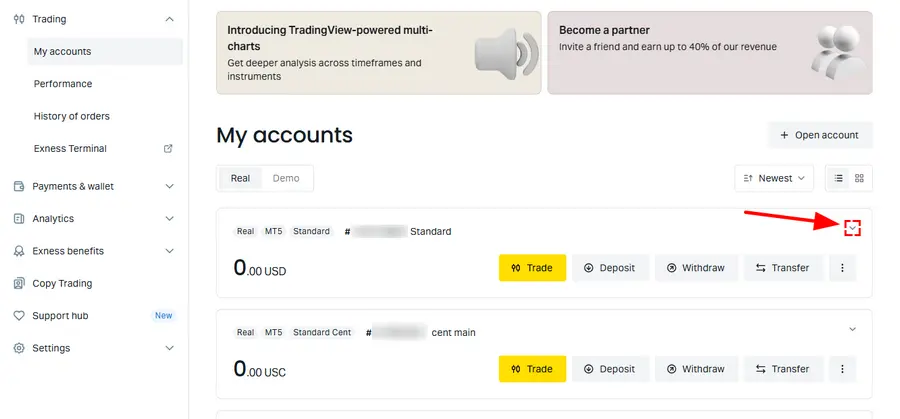
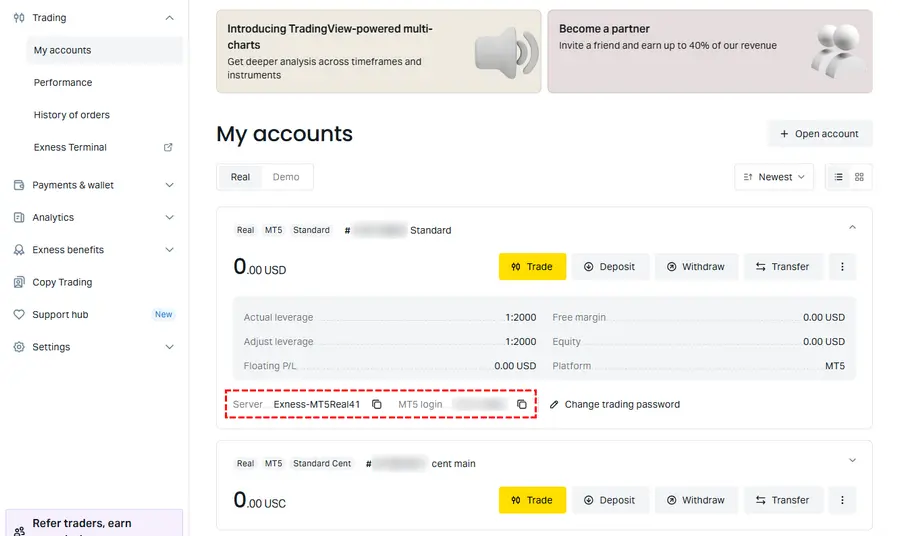
How these map to MT5:
- MT5 login → Login in the MT5 login window
- Server → Server in MT5 (must match exactly—do not guess)
- Trading password → the password you set yourself on the Set up your account screen (usually not the same as your Personal Area sign-in). The Personal Area cannot show the current password—only Change trading password in the expanded card lets you set a new one if you forgot it.
Download Exness MT5 and Log In (PC, Mac, Mobile)
Windows and Mac
On the current Personal Area, desktop MetaTrader 4 and MetaTrader 5 installers are under the ? (help) menu at the top right—not a separate Platforms tab.
- Sign in to the Exness Personal Area.
- Click the ? (question mark) icon in the top-right of the header.
- In the dropdown, under Tools & Services, choose MetaTrader 5 for this guide (MetaTrader 4 is listed here too if you use MT4). A new tab opens with Exness’s MT5 download page.
- On that page, download the installer for Windows or Mac and complete setup. Alternatively, install MT5 from MetaQuotes and search for Exness as broker.
- Launch MT5 → File → Login to Trade Account.
- Enter login, trading password, and server → OK. A green connection icon in the corner means you are connected.
Android and iPhone
- Install MetaTrader 5 from Google Play or the App Store (MetaQuotes official app).
- Open the app → add account → Login to an existing account.
- Search for Exness, select the same server as in the Personal Area, enter login and trading password.
Exness MT5 Login Failed? Checklist
- MT4 account on MT5 — open a separate MT5 account in the Personal Area.
- Wrong server — Demo vs Real, or outdated server list; refresh details in the Personal Area.
- Wrong password — Personal Area password ≠ trading password; reset trading password in account settings if needed.
- Investor password used by mistake — switch to the main trading password.
- Account not verified — complete KYC if Exness requires it before live trading.
- Outdated MT5 build — update the app; Exness may require a minimum build—check the latest Exness Help Center if login still fails.
Can You Use the Same Exness Account on MT4 and MT5?
No. MT4 and MT5 are separate platforms. Each needs its own account number and server. You can hold both under one Personal Area profile, but you must log in with the credentials shown for that platform.
If you already trade on MT4 and want MT5, click Add account and create a new MT5 account—do not reuse the MT4 login in the MT5 app.
After a Successful Exness MT5 Login
- Confirm symbols and quotes load (e.g. EURUSD, XAUUSD).
- Practice on demo before live size—test order types and lot size.
- Compare account costs: Exness account types.
- Check gold contract size and pip value on MT5: XAUUSD lot size and pip value (use MT5 → symbol → Specification for live numbers).
FAQ — Exness MT5 Login