An Exness demo account is free and comes with your Exness registration: the Personal Area creates a demo Standard MT5 account for you automatically. You can add demos for Pro, Raw Spread, and Zero as well (every account type except Standard Cent), set the virtual balance to any amount, and log in with MetaTrader 4, MetaTrader 5, or the Exness Terminal.
This guide shows how to open and add demo accounts, how to set the balance and leverage (including when unlimited leverage actually applies on demo), how to log in to MT5, and what each account type costs per lot on a real account, so your practice matches the account you plan to fund.
Exness Demo Account at a Glance
| Item | Exness demo account |
|---|---|
| Cost | Free; no deposit needed |
| First demo | Standard, MT5, created automatically when you register |
| Account types on demo | Standard, Pro, Raw Spread, Zero (Standard Cent is real-only) |
| Platforms | MT4, MT5, Exness Terminal (browser), Exness Trade app (MT5-based accounts) |
| Virtual balance | Set any amount, higher or lower, with Set Balance |
| Leverage | 1:2 up to 1:Unlimited, changeable at any time |
| How many demos | Up to 100 MT4 demos and 100 MT5 demos per account type |
| Inactivity | Inactive demos are deleted and cannot be restored |
Based on the Exness Help Center as of November 13, 2026. Clients registered with Exness’s Kenyan entity have a maximum leverage of 1:400.
Exness states that demo trading conditions are the same as on real accounts. Each account type keeps its own spreads and commissions on demo, so the type you choose for practice matters (see which account type to practice on).
How to Open an Exness Demo Account
There is no separate demo sign-up. When you register an Exness Personal Area, Exness creates two accounts right away: a real Standard MT5 account and a demo Standard MT5 account. The demo uses virtual funds, so you can start trading on it without making a deposit.
The account-opening guide below walks through the registration screens. After that, open My accounts and select the Demo tab to find your first demo account.
Add a Demo for Pro, Raw Spread, or Zero
The automatic demo is always Standard on MT5, and an account’s type and server cannot be changed later. To practice on another account type, on MT4, or with a different account currency, create a new demo account from the Personal Area.
Sign in to your Exness Personal Area on the official site.
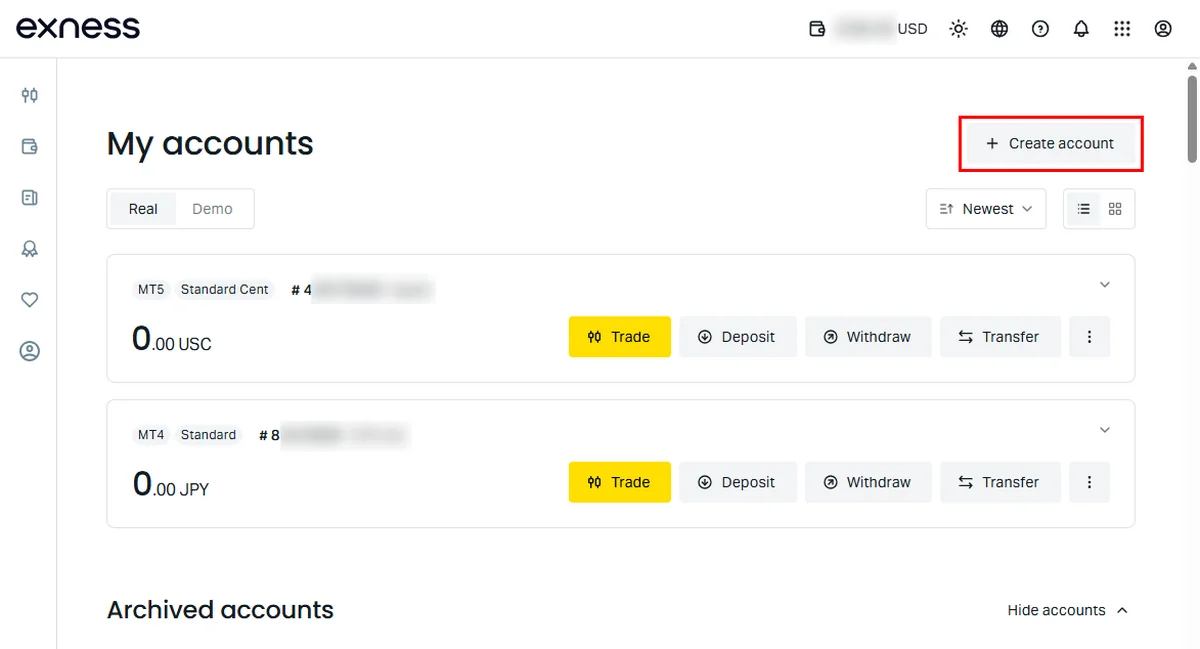
On the My accounts page, click Create account at the top right.
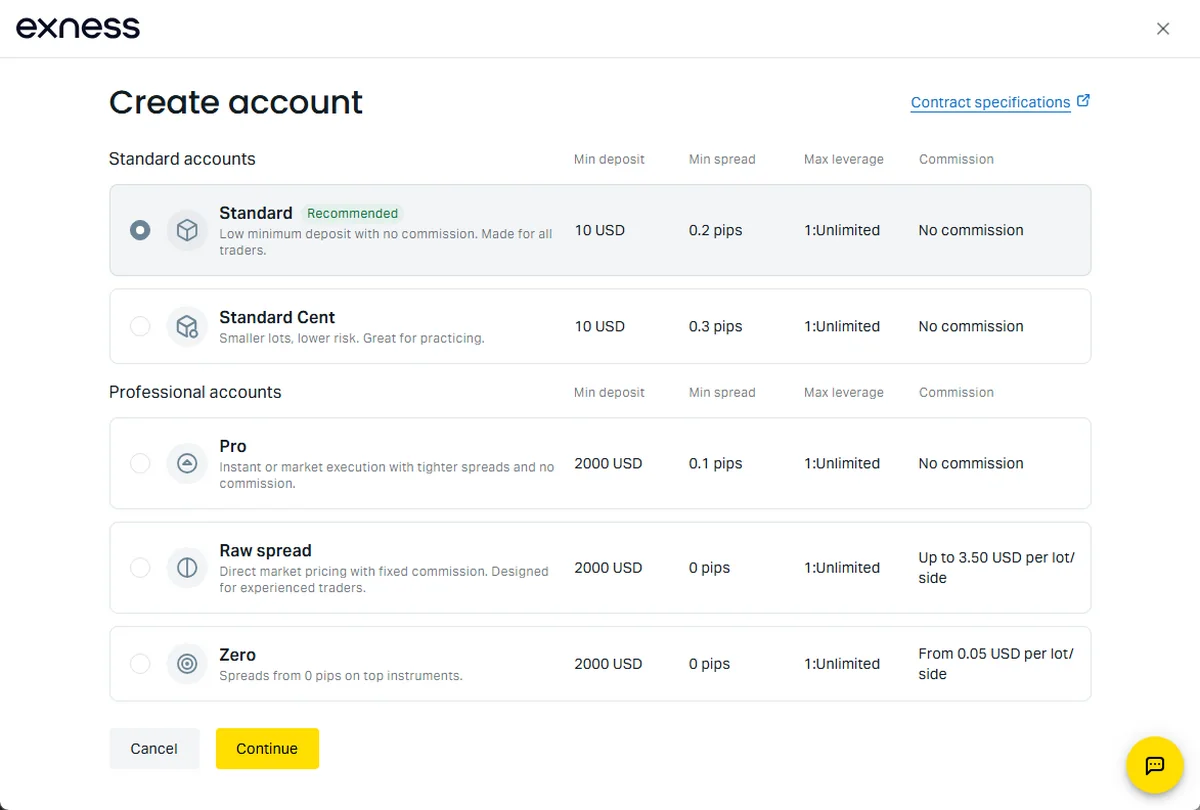
Choose Standard, Pro, Raw spread, or Zero, then click Continue. Standard Cent also appears in the list, but it is available only as a real account.
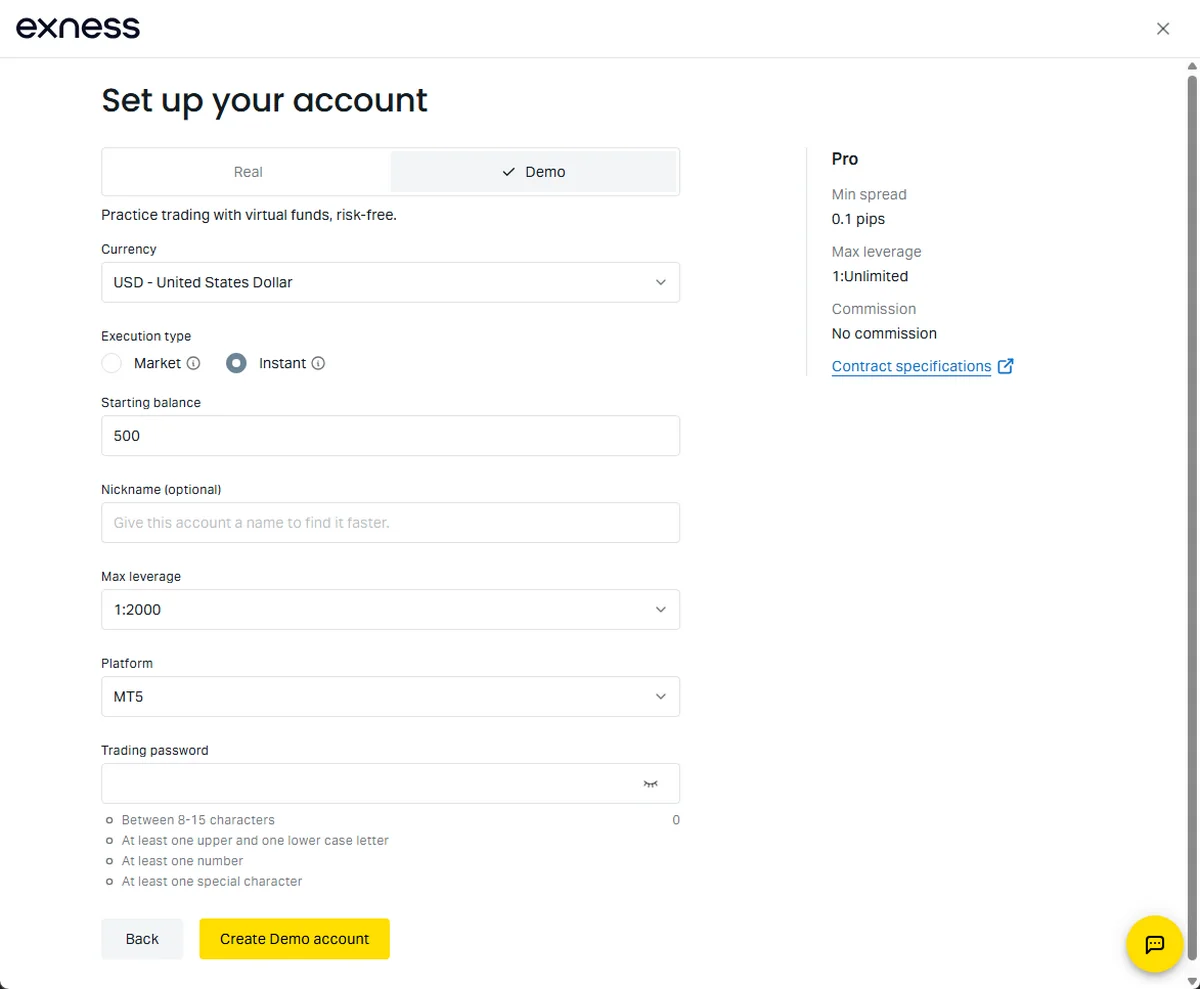
Select the Demo tab, then set the following items:
- Currency: the account currency, which cannot be changed later.
- Execution type: Market or Instant (Pro accounts only).
- Starting balance: the virtual balance the demo starts with.
- Nickname (optional): a name that helps you find the account in the list.
- Max leverage and Platform (MT4 or MT5).
- Trading password: 8–15 characters, with at least one uppercase letter, one lowercase letter, one number, and one special character. Save it, because you need it to log in to MetaTrader.
When everything is set, click Create Demo account.
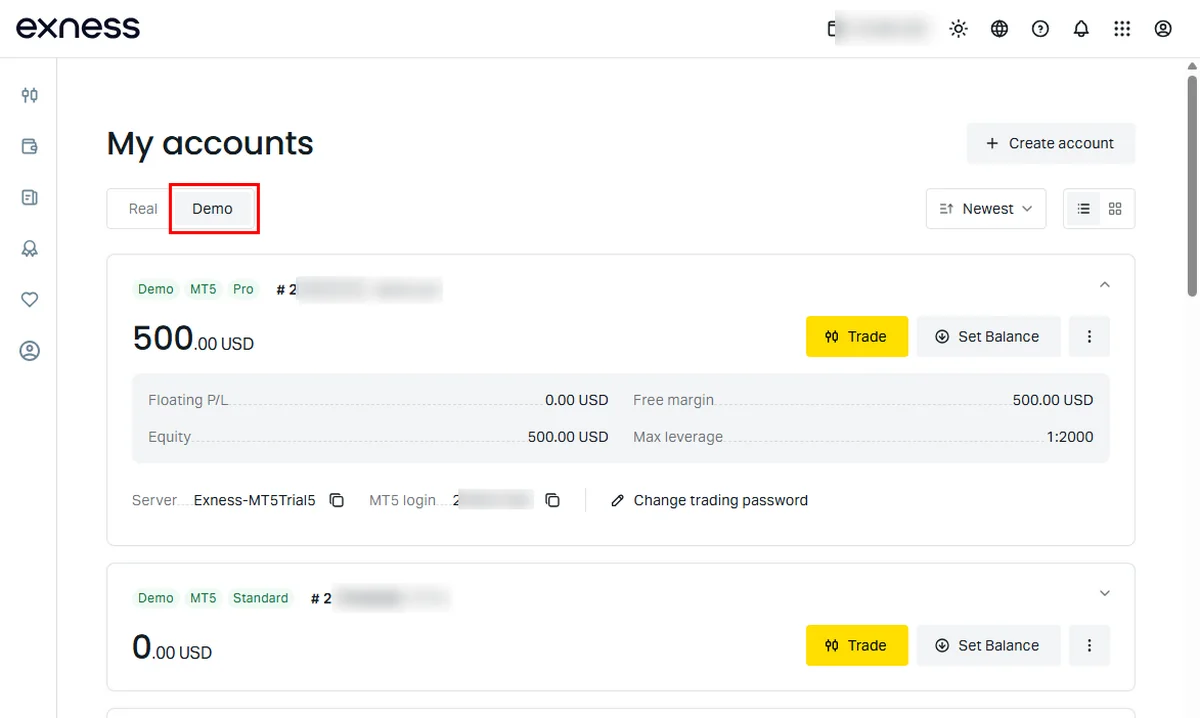
The new account appears in the Demo tab of My accounts. Expand the account card to see its server and MT5 login, which you need for MetaTrader.
On a phone, the Exness Trade app works the same way: open the dropdown on the Accounts tab, tap +, choose the account type and platform, select Demo, and fill in the same settings.
The account currency cannot be changed after the account is created. If you plan to deposit in a currency other than USD, open the demo in that currency so that profit, loss, and margin appear in the same units as on your real account.
Which Account Type to Practice On: Real Costs per Lot
Your first demo is Standard, but Standard is not the cheapest account to trade on. The table shows what one round-trip lot cost on TR-MATE’s real Exness MT5 accounts over the last 30 days, with the spread and the commission combined.
| Standard | Pro | RawSpread | Zero | ||
|---|---|---|---|---|---|
| E U R U S D | avg spread (pips) | 0.89 | 0.67 | 0.05 | 0.04 |
| commission (USD) | – | – | 5.00 | 5.00 | |
| cost per lot (USD) | 8.87 | 6.66 | 5.46 | 5.42 | |
| X A U U S D | avg spread (USD) | 0.240 | 0.168 | 0.080 | 0.040 |
| commission (USD) | – | – | 7.00 | 11.00 | |
| cost per lot (USD) | 24.02 | 16.81 | 15.01 | 15.01 | |
Averages from TR-MATE’s real Exness MT5 accounts, October 14 to November 12, 2026. Cost per lot is the average spread times the contract size (100,000 EUR or 100 oz) plus the round-trip commission Exness publishes for that symbol.
- EURUSD: Raw Spread and Zero cost about $5.4 per lot, while Standard costs about $8.9, roughly 60% more. If you trade forex often, practice on a Raw Spread or Zero demo so that the commission shows up in your demo results.
- XAUUSD: Pro, Raw Spread, and Zero cost $15–17 per lot, while Standard costs about $24. On gold, the gap between Standard and the other types is the largest.
- Standard: Standard has no commission and the lowest minimum deposit. Its EURUSD spread stayed at 0.8 pips for most of the day.
Spreads also change with the time of day. On these accounts, EURUSD widened sharply between 21:00 and 23:00 UTC, around the daily rollover. During those two hours, the average Standard spread rose to about 2.7–3.1 pips, compared with 0.8 pips for the rest of the day, and the Raw Spread average rose from almost 0 to about 1.1 pips. If you run an EA or hold short-term trades across that window, test that period on the demo too.
For minimum deposits and the other differences between account types, see Exness account types compared.
How to Set Your Demo Balance and Leverage
Set the Demo Balance
You choose the starting balance when you create a demo. To change it later, follow these steps:
Log in to the Personal Area, open My accounts, and select the Demo tab.
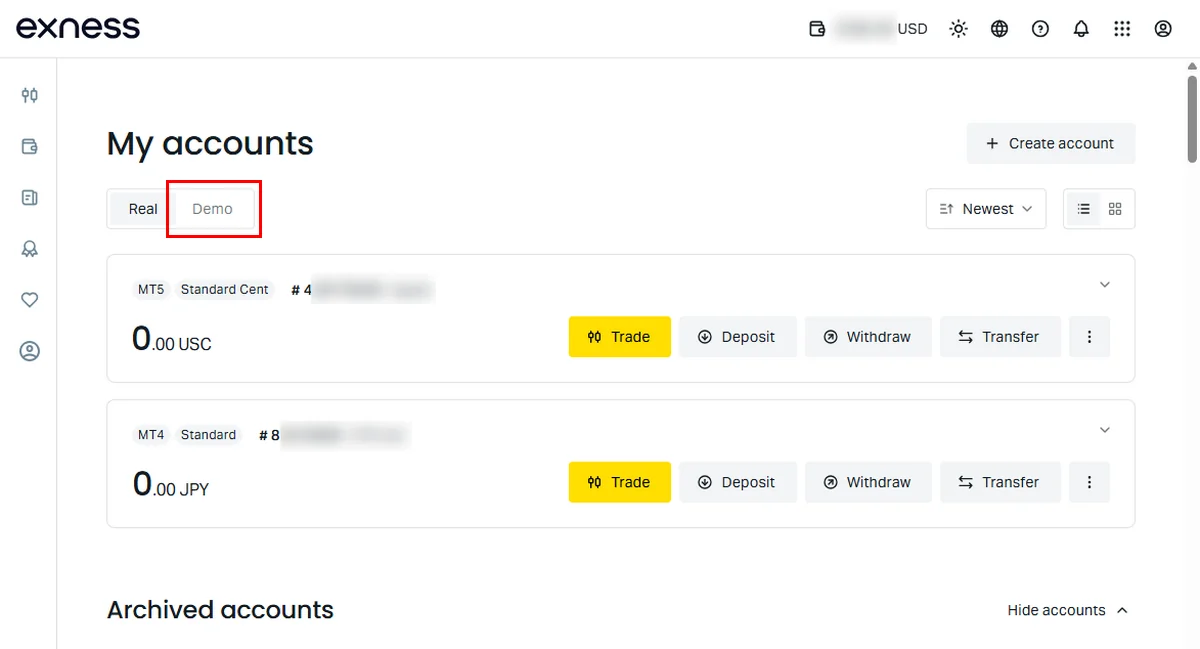
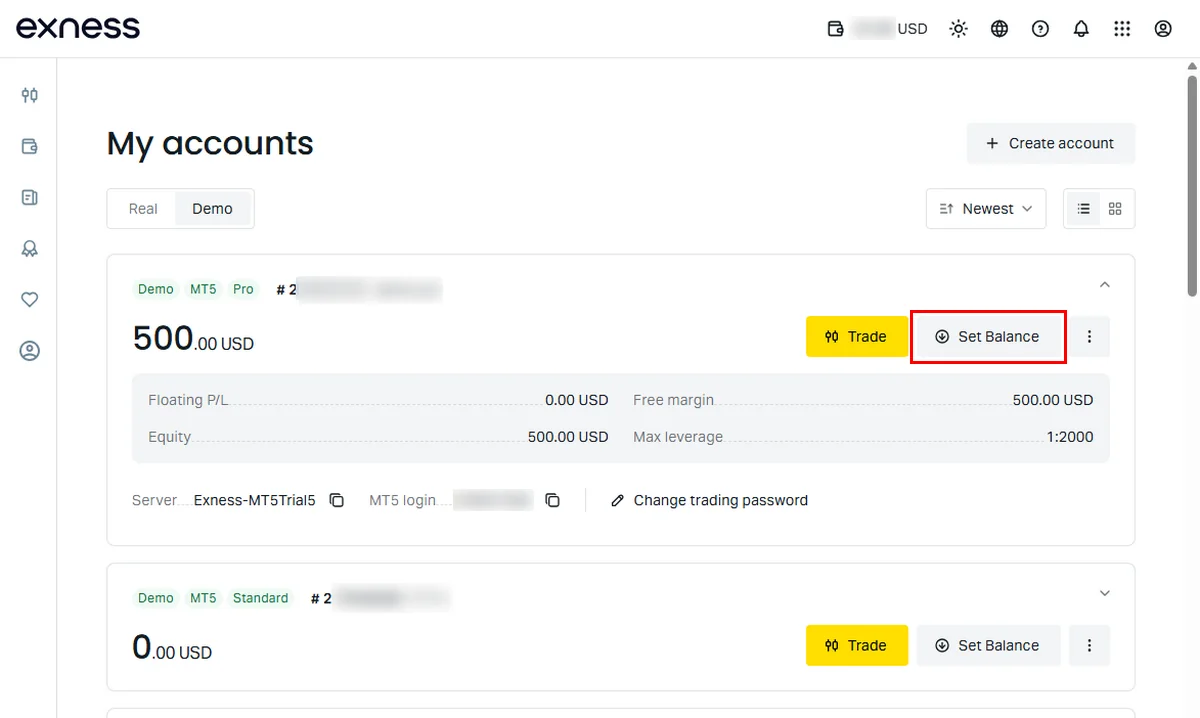
Click Set Balance on the demo account you want to change.
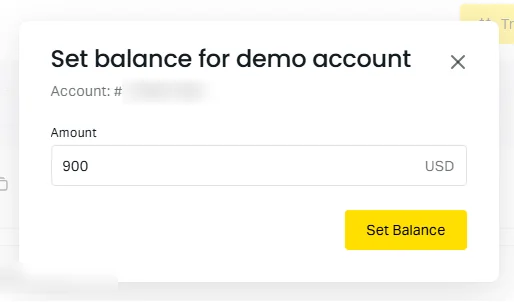
Enter the new balance in Amount and click Set Balance.
The account card now shows the new balance, and the equity and free margin change with it.
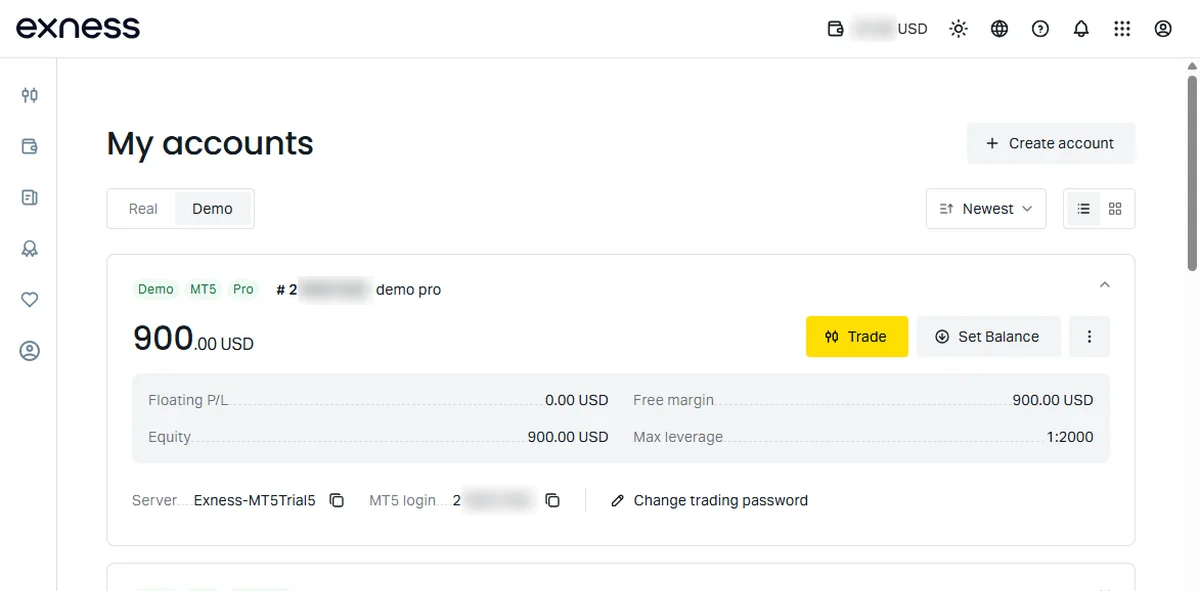
The new balance can be higher or lower than the current one, and it is entered in the account’s currency. Setting the balance to the amount you actually plan to deposit gives you realistic lot sizes and margin levels. A $100,000 demo makes 1-lot trades feel small, while the same trade on a $500 account uses a large share of the margin.
Change the Leverage, and When Unlimited Applies
In My accounts, click the three-dot icon next to the account and select Max leverage. You can choose from 1:2 to 1:Unlimited or enter a custom value.
On a demo account, the 1:Unlimited option is always selectable, but it only applies while the account’s equity is 4,999.99 USD or less. Above that, Exness lowers the actual leverage according to its standard equity ranges, even though the setting still shows Unlimited. To see how unlimited leverage behaves, set the demo balance below 5,000 USD first.
Unlimited leverage also covers only some instruments: forex majors and minors, commodities except XAUUSD247, BTCUSD, BTCUSDT, ETHUSD, and ETHBTC among cryptocurrencies, and a few indices such as US30, US500, USTEC, and JP225. On a real account, it becomes available only after you have closed at least 10 orders totaling 5 lots or more, and only while equity is under 5,000 USD. The demo lets you try it before you meet those conditions.
How to Log In to MT5 or MT4 with Your Demo Account
MetaTrader needs three details. All of them are in the Personal Area: open My accounts and expand the demo account card.
- Login: the account number shown next to the MT5 or MT4 label with a Demo tag.
- Password: the trading password for that account, not your Personal Area password. If you have forgotten it, select Change Trading Password on the account card.
- Server: the server listed on the account card. Demo servers have names such as Exness-MT5Trial5, which differ from real-account servers.
If MetaTrader shows Invalid account or the charts do not load, one of these three details is wrong. Copy the server name again from the account card. Also check that your platform is up to date: Exness supports only MT4 build 1440 or later and MT5 build 4755 or later, and older builds cannot connect.
If you do not want to install anything, click Trade on an MT5 demo in the Personal Area to open it in the Exness Terminal in your browser. The MT WebTerminal works for both MT4 and MT5 but cannot run EAs. For step-by-step MT5 setup on PC, Mac, and mobile, see the Exness MT5 login guide.
Keep Your Demo from Being Deleted
Real Exness accounts are archived when they are inactive and can be restored. Demo accounts are different: after a period of inactivity, an MT4 or MT5 demo is deleted permanently and cannot be recovered. Exness counts an account as inactive when it has no trading or balance operations, so logging in without trading does not keep it active. Exness does not publish a fixed number of days and notes that accounts may be removed sooner than its stated periods.
- Place a trade or change the balance on demos you want to keep, especially before a break.
- Keep EA settings, templates, and trade notes on your own computer, not only on the demo account.
- If a demo has disappeared, create a new one with Create account. Creating accounts is free.
Demo vs Real Exness Account
| Item | Demo account | Real account |
|---|---|---|
| Funds | Virtual; set any amount | Your deposit; profits can be withdrawn |
| Account types | Standard, Pro, Raw Spread, Zero | The same four plus Standard Cent |
| Unlimited leverage | Selectable any time; applies under 5,000 USD equity | After 10 closed orders and 5 lots; applies under 5,000 USD equity |
| When inactive | Deleted permanently | Archived; can be restored |
| Server | Demo server | Real server (different name) |
A demo can show you the platform, the costs, and how your strategy behaves, but it cannot show how you react when the money is real. When you move to a real account, start with smaller positions than you used on the demo. Then compare your real results with your demo results for the same account type.
FAQ — Exness Demo Account
Practice on the Account Type You Will Fund
An Exness demo costs nothing and is ready as soon as you register. The automatic demo is Standard on MT5, so if you plan to trade on Pro, Raw Spread, or Zero, add a demo of that type. Set the balance close to your planned deposit, keep it under 5,000 USD if you want to test unlimited leverage, and trade on it regularly so that it is not deleted.